
Install Tailkits UI with Claude via MCP
Connect Tailkits UI to Claude with MCP in minutes
Introduction
Are you tired of Claude AI generating generic, inconsistent UI code that requires endless revisions? What if Claude could access a professional component library and build production-ready landing pages on the first try?
In this tutorial, you'll learn exactly how to install and configure Tailkits UI with Claude AI through MCP (Model Context Protocol) integration. By the end, you'll be building complete, cohesive landing pages in single prompts—no more fighting with AI-generated spaghetti code.
Why Connect Tailkits UI to Claude?
Before Tailkits UI MCP:
Generic, inconsistent code across sections
Each component looks designed by different people
5+ prompts needed for shippable results
Spaghetti class structures with no reusability
Destroys context window with endless revisions
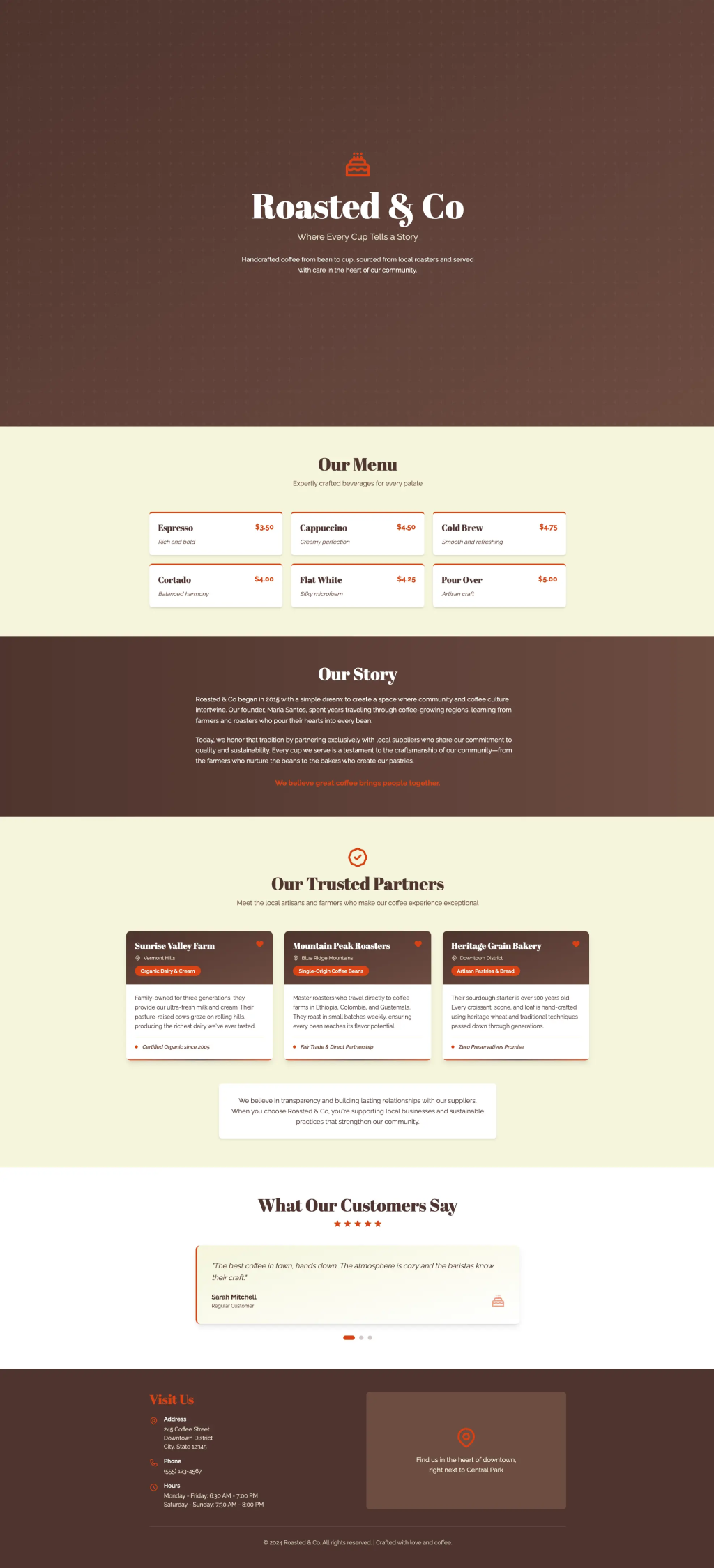
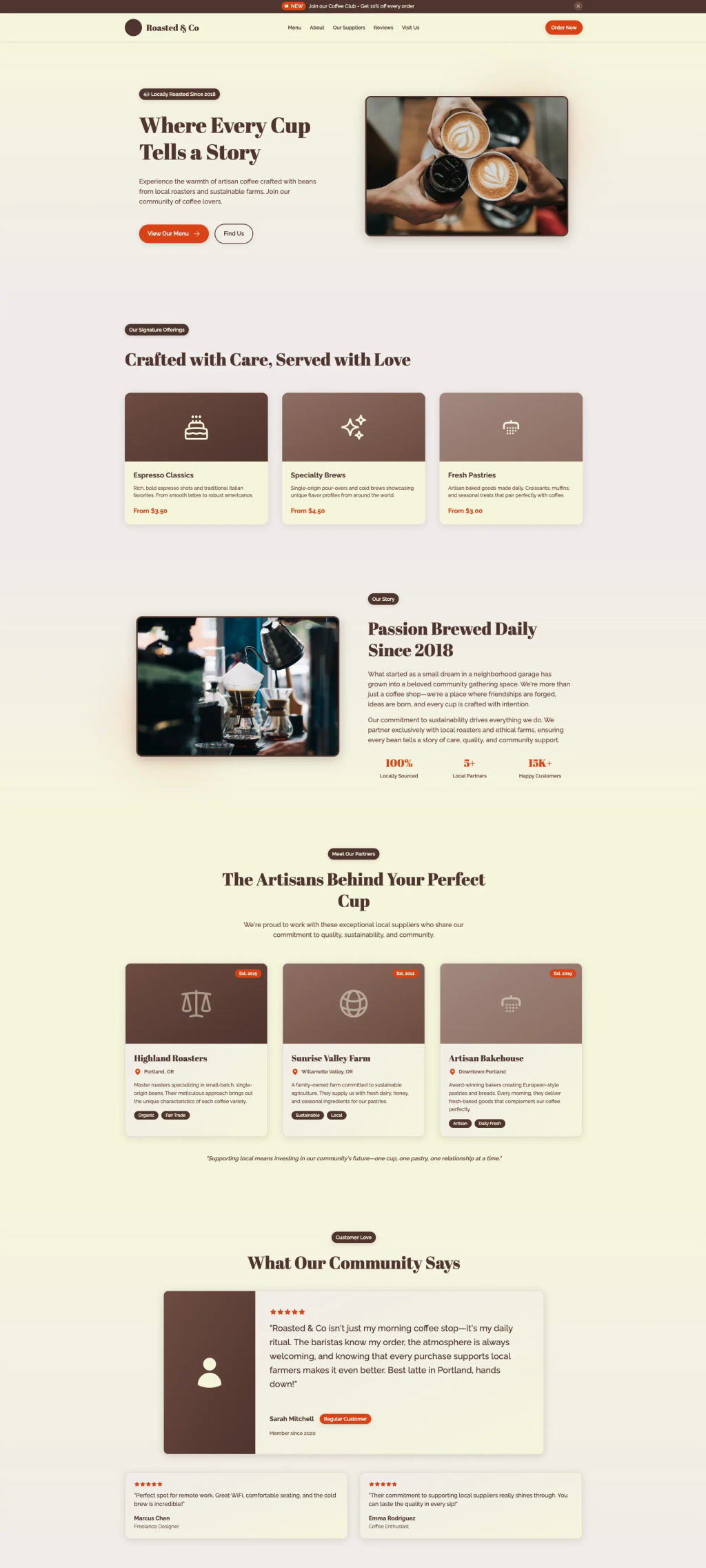
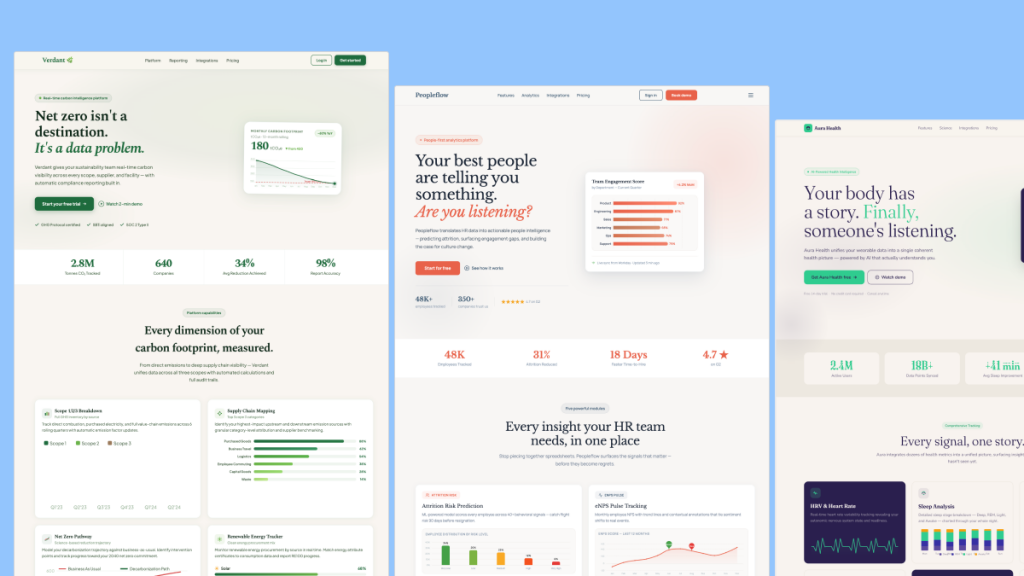
After Tailkits UI MCP:
Production-ready code from vetted components
Consistent design language across all sections
Single prompt often sufficient for complex pages
Clean, maintainable code with proper spacing
Token-efficient (lower API costs)
Prerequisites
Before starting the installation, ensure you have:
Claude AI Account - Access to claude.ai (free or paid plan)
Tailkits UI Account - Any paid plan (Quarterly $29, Yearly $89, or Lifetime $149)
MCP Token - Available in your Tailkits dashboard after purchase
Step-by-Step Installation Guide
Step 1: Get Your Tailkits UI MCP Token
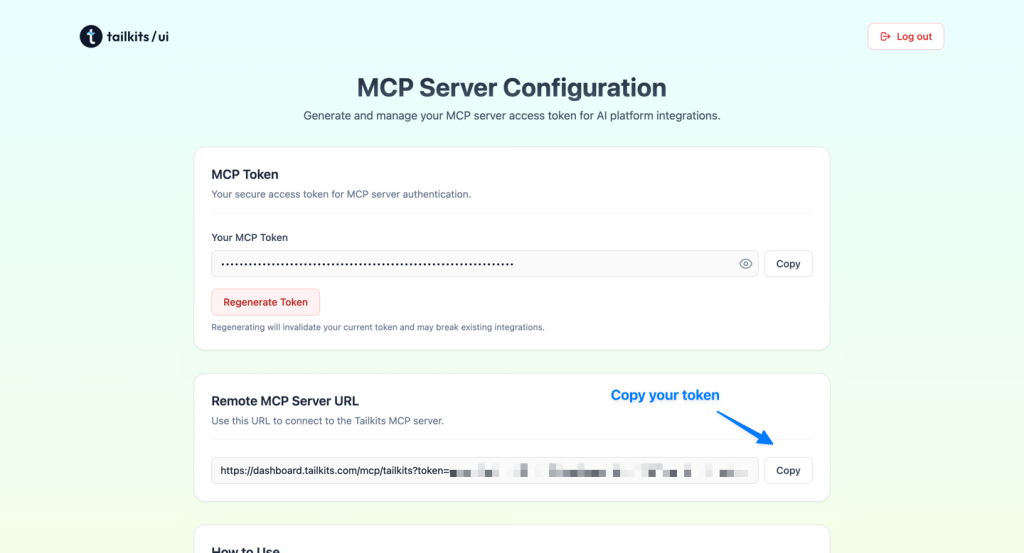
Log in to your Tailkits UI dashboard at → dashboard.tailkits.com
Navigate to the MCP Integration section → https://tailkits.com/ui/mcp-setup
Copy your unique MCP token (it looks like:
qARuYhV69JIEvi0vhWl3...)Keep this token secure - you'll need it for configuration
Step 2: Access Claude AI Settings
Open claude.ai in your browser
Click on your profile icon in the bottom-left corner
Select "Settings" from the menu
Navigate to the "Connectors" tab
Look for "Add custom connector" section
Step 3: Add Tailkits UI MCP Server
Click "Add custom connector"
Enter the following details:
Server Name:
Tailkits UIServer URL:
https://dashboard.tailkits.com/mcp/tailkits?token=YOUR_TOKEN_HERE
Replace
YOUR_TOKEN_HEREwith your actual MCP token from Step 1Click "Connect" or "Add Server"
Wait for the green checkmark confirming successful connection
Step 4: Verify the Connection
Start a new conversation with Claude
Make sure Tailkits UI connector is active
"Add (+)" button then toggle "Connectors → Tailkits UI"
Type: "What Tailkits UI components do you have access to?"
Claude should respond with categories and component information
If Claude can list components, your installation is successful! 🎉
How to Use Tailkits UI with Claude
Basic Usage: Single Component
Simple Prompt:
Create a hero section for a SaaS product that helps developers
track bugs. Use a Tailkits UI component.
Claude's Response: Claude will suggest a specific component (e.g., "hero-5") and generate the complete HTML code with proper Tailwind classes, ready to copy into your project.
Advanced Usage: Complete Landing Page
Comprehensive Prompt:
I built a micro SaaS that tracks MRR and churn for indie hackers.
I need a complete landing page with:
- Hero section with email capture
- Features section (3 key features)
- Pricing table (3 tiers)
- FAQ section
- Footer with social links

Use Tailkits UI components that work well together.
Claude's Response: Claude will select complementary components from the library (hero-5 + features-14 + pricing-2 + faq-1 + footer-3) and generate a fully cohesive landing page with consistent spacing, typography, and design language.
Pro Tips for Best Results
Be specific about your use case - Describe what your product does
Mention component types - Specify if you want hero, pricing, features, etc.
Request consistency - Ask Claude to use components that match stylistically
Iterate efficiently - Ask for specific changes rather than complete rewrites
Leverage categories - Ask Claude to show available options first
Example Prompts That Work Great
Exploring Available Components
Show me all hero section options from Tailkits UIBuilding Specific Sections
Create a pricing section with 3 tiers using Tailkits UI.
Include monthly/annual toggle.
Complete Page Generation
Build a landing page for an AI writing tool with hero,
3 feature blocks, testimonials, and CTA section.
Use Tailkits UI components.
Requesting Specific Components
Use Tailkits UI hero-8 and features-12 to create
a landing page for a project management tool
Customization and Flexibility
One of Tailkits UI's greatest strengths is customization:
Direct Class Editing:
<!-- Change colors, spacing, or any style directly -->
<div class="bg-blue-500 p-8 rounded-xl">
  <!-- Edit these Tailwind classes freely -->
</div>
Tailwind Config:
// Override design tokens in tailwind.config.js
module.exports = {
  theme: {
    extend: {
      colors: {
        primary: '#your-brand-color'
      }
    }
  }
}
Framework Integration:
Works with Next.js, React, Vue, Nuxt, and any framework supporting HTML + Tailwind
No JavaScript dependencies means maximum portability
Add your own interactivity as needed
Troubleshooting Common Issues
Issue: Claude doesn't recognize Tailkits UI
Solution:
Verify your MCP token is correctly added to the URL
Check that the server status shows "Connected" in Claude settings
Try disconnecting and reconnecting the MCP server
Start a new conversation after connecting
Issue: Components don't match expectations
Solution:
Be more specific in your prompts about what you want
Ask Claude to list available components first
Request specific component numbers (e.g., "use hero-5")
Provide examples of the style you're looking for
Issue: Connection fails or times out
Solution:
Check your internet connection
Verify your Tailkits UI subscription is active
Ensure your MCP token hasn't expired
Contact Tailkits UI support if issues persist
Issue: Generated code has styling issues
Solution:
Ensure Tailwind CSS is properly installed in your project
Verify you're using Tailwind v3+
Check that your build process includes all Tailwind classes
Make sure you have the Tailwind CDN or build setup configured
Real-World Workflow Example
Let's walk through building a complete landing page from scratch:
Step 1: Explore Options
Show me the available hero section styles in Tailkits UIStep 2: Build Complete Page
I like hero-5. Now create a complete landing page for an AI
writing tool using hero-5, plus matching features, pricing (3 tiers),
testimonials, and footer sections.
Result: Claude generates a complete, production-ready landing page in seconds with:
✅ Consistent design language
✅ Proper responsive breakpoints
✅ Clean, readable code structure
✅ Components that visually complement each other
Time saved: What normally takes 2-3 hours of design and coding is completed in under 5 minutes.
Connecting Tailkits UI to Claude AI transforms your development workflow. Instead of fighting with generic, inconsistent code, you get production-ready components that work together beautifully—all generated from simple prompts.
Ready to get started?
Sign up for Tailkits UI at tailkits.com
Get your MCP token from the dashboard
Connect it to Claude AI following the steps above
Start building production-ready UIs in minutes
No more endless revisions. No more design inconsistencies. Just describe what you need, and ship it tonight.
FAQ
Do I need a paid Claude AI account?
No, the free Claude AI account works perfectly with Tailkits UI MCP integration.
Can I use Tailkits UI without MCP integration?
Yes! Tailkits UI also offers a copy-paste library. However, MCP integration makes Claude automatically reference components, saving you time.
How many components can I use per project?
Unlimited! All paid plans include unlimited usage across unlimited projects.
Do I need to know Tailwind CSS?
Basic familiarity helps, but it's not required. The components are ready to use, and Claude can help you customize them.
Can I customize the components?
Absolutely! You have full control to edit Tailwind classes directly or configure your Tailwind config file.
What if I want to switch components later?
Just ask Claude! You can swap out components at any time by specifying which one you prefer.
Does this work in Claude Projects?
Yes! Tailkits UI MCP works in both regular Claude conversations and Claude Projects.

Yucel is a digital product creator and content writer with a knack for full-stack development. He loves blending technical know-how with engaging storytelling to build practical, user-friendly solutions. When he's not coding or writing, you'll likely find him exploring new tech trends or getting inspired by nature.