
Install Tailkits UI in ChatGPT via MCP
Generate Tailwind sections in ChatGPT with Tailkits UI
What do you get when Tailkits UI is connected to ChatGPT?
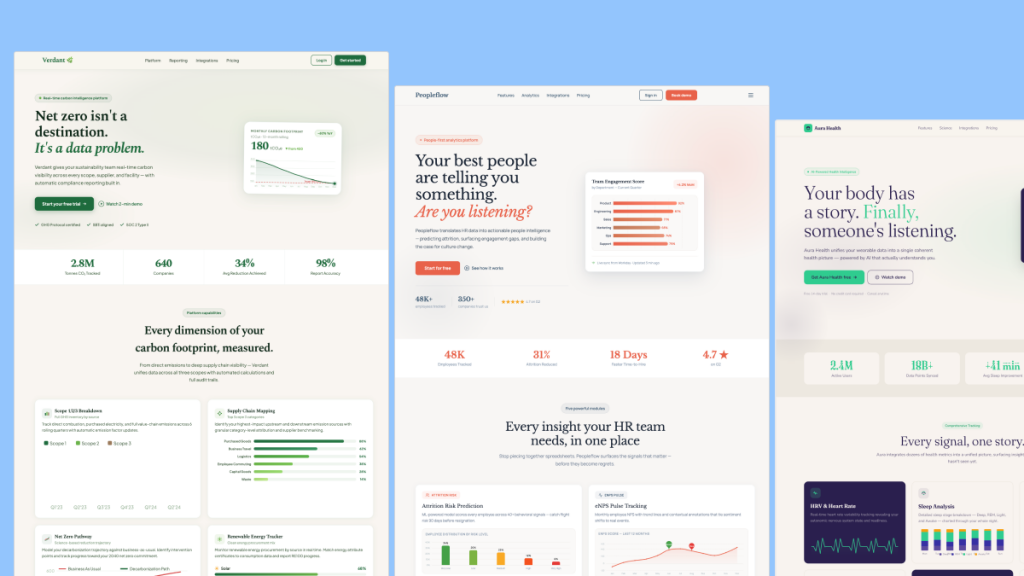
You get AI-generated pages that pull from real Tailkits UI components instead of generic Tailwind guesses. Tailkits UI is built around “describe, don’t code” and supports MCP workflows (including ChatGPT) so the assistant can fetch vetted sections and return consistent layouts.
Before Tailkits UI MCP
UI sections feel inconsistent across the page
More prompt loops to fix spacing, typography, and patterns
“Looks AI-made” Tailwind output that needs cleanup
After Tailkits UI MCP
Components come from an actual library (200+ sections)
Better consistency across hero, features, pricing, FAQ
Faster path from prompt to shippable landing page
What do you need before you start?
You need a Tailkits UI account with an MCP token, plus ChatGPT access to Developer Mode for MCP connectors.
Prereqs
Tailkits UI account + MCP token (from the Tailkits dashboard)
ChatGPT Developer Mode available on your plan or workspace (availability varies by plan and admin settings)
How do you get your Tailkits UI MCP token?
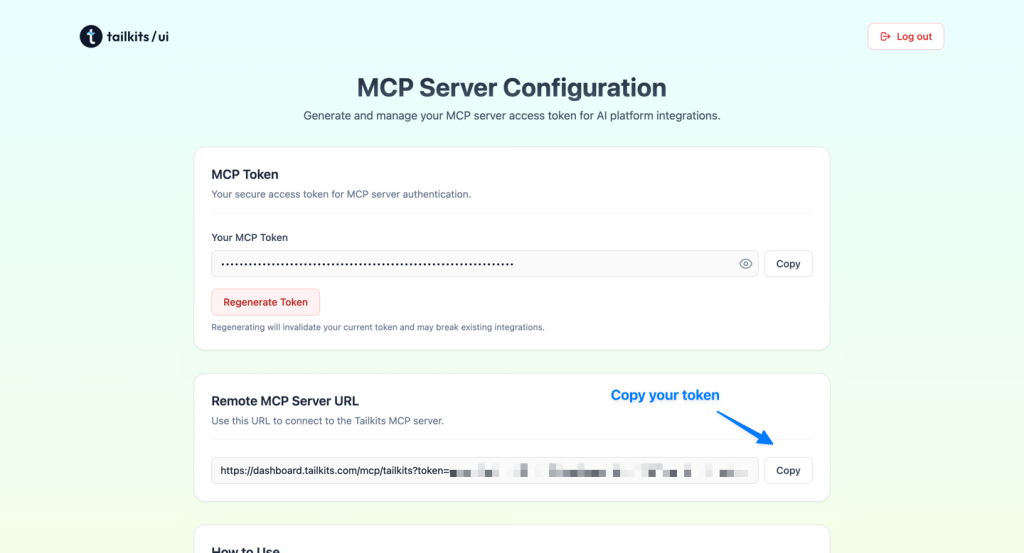
Copy your token from the Tailkits dashboard, then keep it private.
Log in to your Tailkits dashboard
Open the MCP integration/setup area
Copy your MCP token (you’ll paste it into the MCP server URL)
How do you enable Developer Mode in ChatGPT?
Turn on Developer Mode in ChatGPT settings so you can create a custom MCP connector.
In ChatGPT, go to Settings → Apps & Connectors (or Connectors)
Find Advanced settings, then toggle Developer Mode
If you’re in a workspace, an admin may need to enable Developer Mode first (and permissions can differ by plan).
How do you add Tailkits UI as an MCP connector in ChatGPT?
Create a custom connector and point it at the Tailkits UI MCP server URL (SSE is supported). OpenAI’s Developer Mode supports MCP servers over SSE and streaming HTTP.
Go to Settings → Connectors → Create (exact wording can vary)
Use a name like: Tailkits UI
Paste the Tailkits MCP server URL and include your token:
https://dashboard.tailkits.com/mcp/tailkits?token=YOUR_TOKEN_HEREThat URL format is the standard Tailkits pattern shown in their setup flow and MCP listings.
Save, then Refresh the connector if ChatGPT shows a refresh option after changes
How do you verify Tailkits UI is working inside ChatGPT?
Ask ChatGPT what Tailkits UI components it can access and confirm it returns categories or component IDs.
Try this in a new chat after enabling the connector:
“What Tailkits UI components do you have access to?”
“Show me all Tailkits UI hero sections and tell me the IDs.”
If you see lists like hero-5, features-14, pricing-2, you’re connected (those ID-style flows are how Tailkits UI is meant to be used).
How do you generate a full landing page in one prompt?
Tell ChatGPT what you’re building, what sections you need, and ask it to pick Tailkits UI components that match stylistically. (Tailkits)
Copy-paste prompt
I built a micro SaaS that tracks MRR and churn.

Build a complete landing page using Tailkits UI components:
- Hero with email capture
- 3 feature blocks
- Pricing with 3 tiers
- FAQ
- Footer

Pick component IDs that match visually, then output the full HTML.
What prompts work best with Tailkits UI in ChatGPT?
Prompts that “lock in” component IDs first, then iterate, produce the cleanest results.
Prompt ideas
“Show me 5 hero options (IDs) for a B2B SaaS, then I’ll pick one.”
“Use hero-5 + pricing-2 and pick matching features and FAQ.”
“Make it dark mode and keep spacing consistent across sections.”
What should you do if the connector fails to connect?
Most issues are settings, permissions, or an endpoint/token mismatch.
Quick fixes
Developer Mode toggle missing: check workspace permissions and plan requirements
Connector connects but tools do not show: refresh the connector after saving changes
Wrong token: re-copy from Tailkits dashboard and replace it in the URL
FAQ
Do you need to run anything locally?
No, Tailkits UI’s MCP server is hosted. You just add the URL with your token.
Does ChatGPT support MCP servers in Developer Mode?
Yes, Developer Mode is designed to connect ChatGPT to remote MCP servers (including SSE).
Can you still use Tailkits UI without MCP?
Yes, but MCP is what makes the assistant reliably pull real components instead of guessing.

Yucel is a digital product creator and content writer with a knack for full-stack development. He loves blending technical know-how with engaging storytelling to build practical, user-friendly solutions. When he's not coding or writing, you'll likely find him exploring new tech trends or getting inspired by nature.