
Install Claude Code in VS Code: Beginner Setup
Beginner setup for Claude Code extension in VS Code

If you're new to coding or just starting out with AI coding assistants, you might have heard about Claude Code.
But what is it, and how can you use it right inside your code editor?
What is Claude Code?
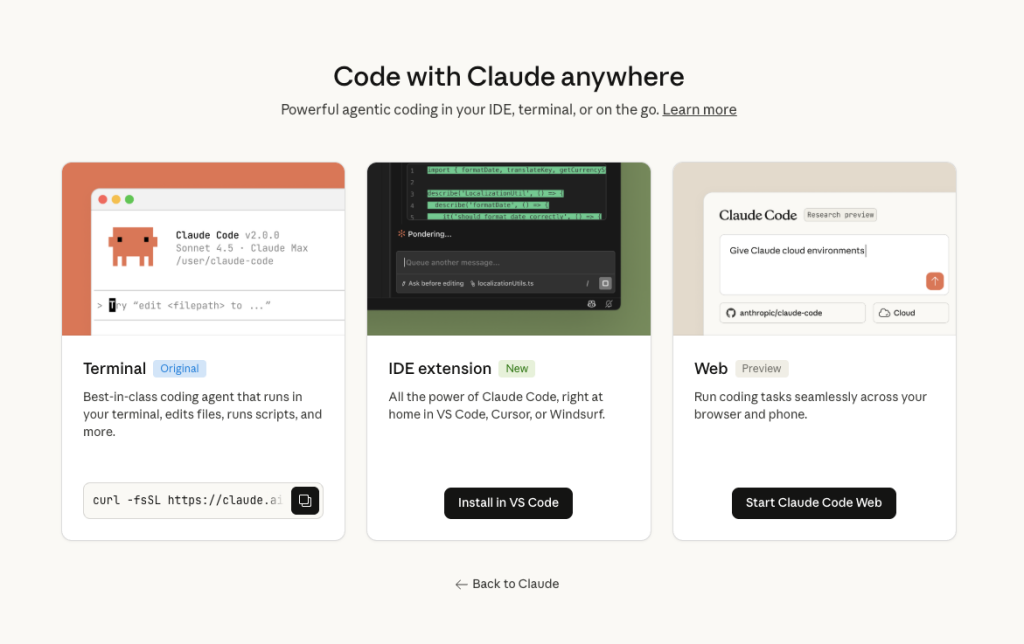
Think of Claude Code as your personal coding assistant that lives right inside your code editor. Instead of switching between writing code and asking questions in a browser, Claude Code helps you write, review, and improve code without ever leaving your workspace. It's like having an experienced programmer sitting next to you, ready to help whenever you need it.

Why Use the Visual Studio Code Extension?
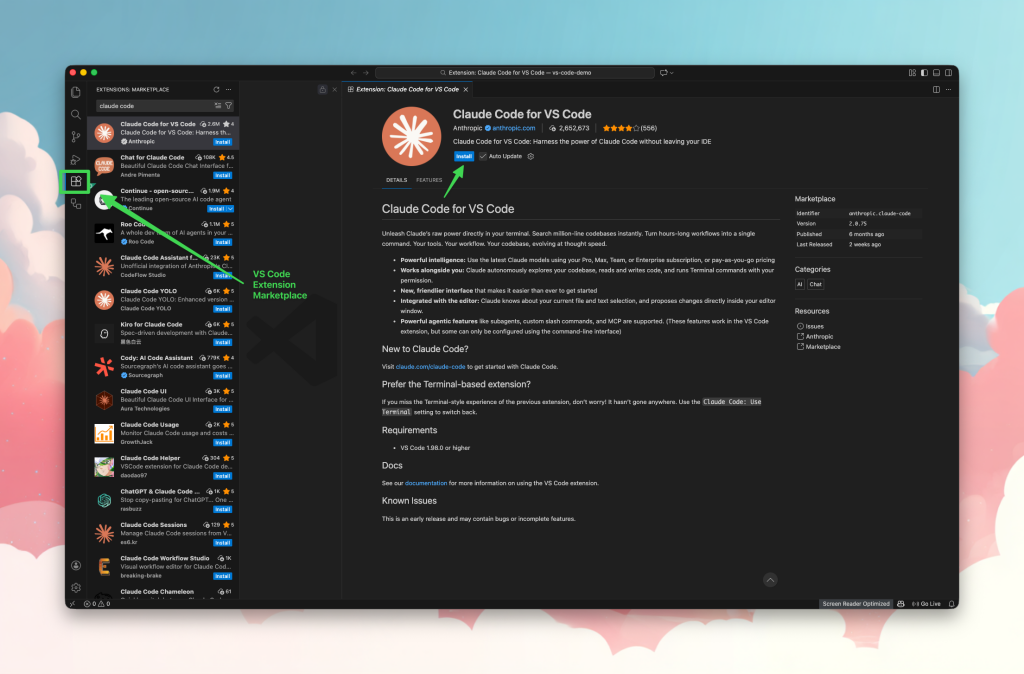
Visual Studio Code (or VS Code for short) is one of the most popular code editors out there. It's free, powerful, and used by millions of developers. The Claude Code extension brings AI assistance directly into this editor, so you can:
Get coding help without opening a separate app
See suggested changes to your code in real-time
Review what Claude wants to do before it happens
Keep all your work in one place
What You'll Need
Before we get started, make sure you have:
Visual Studio Code version 1.98.0 or newer (you can check your version by clicking "Help" → "About" in VS Code)
An internet connection (Claude Code needs to connect to Anthropic's servers to work)
That's it! No complicated setup required.
Installing Claude Code: Step by Step
Open Visual Studio Code
Look for the Extensions icon on the left sidebar (it looks like four squares)
In the search box that appears, type "Claude Code"
Find the extension by Anthropic and click "Install"
Wait a moment for it to download and install
Congratulations! You've just installed your AI coding assistant.
Your First Time Using Claude Code
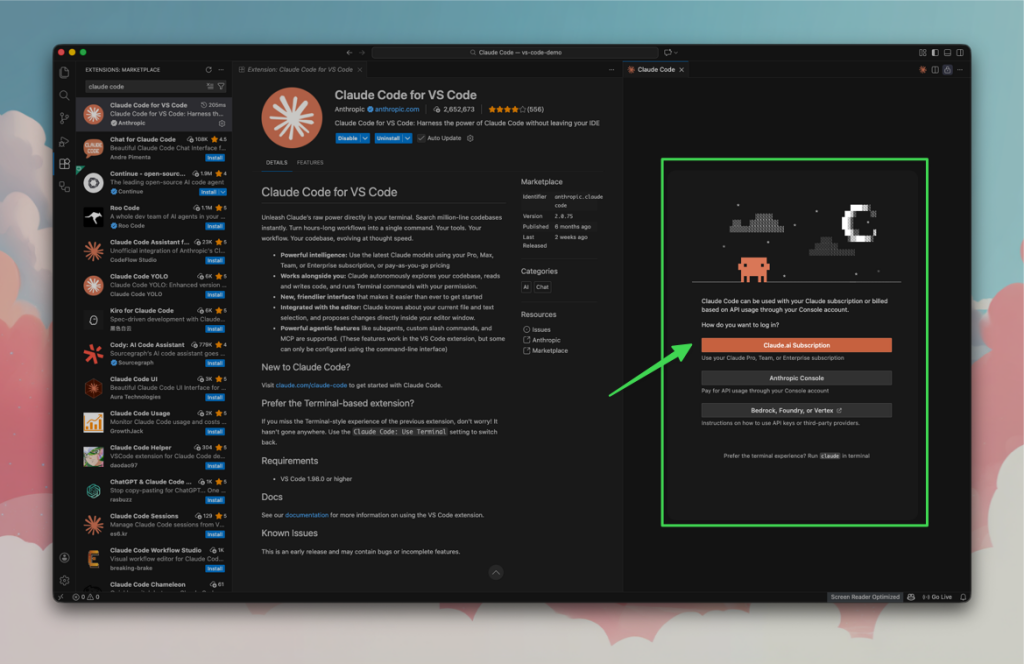
Once installed, you'll see a new Spark icon (⚡) appear in your VS Code sidebar. Click on it, and continue in browser and click "Authorize"
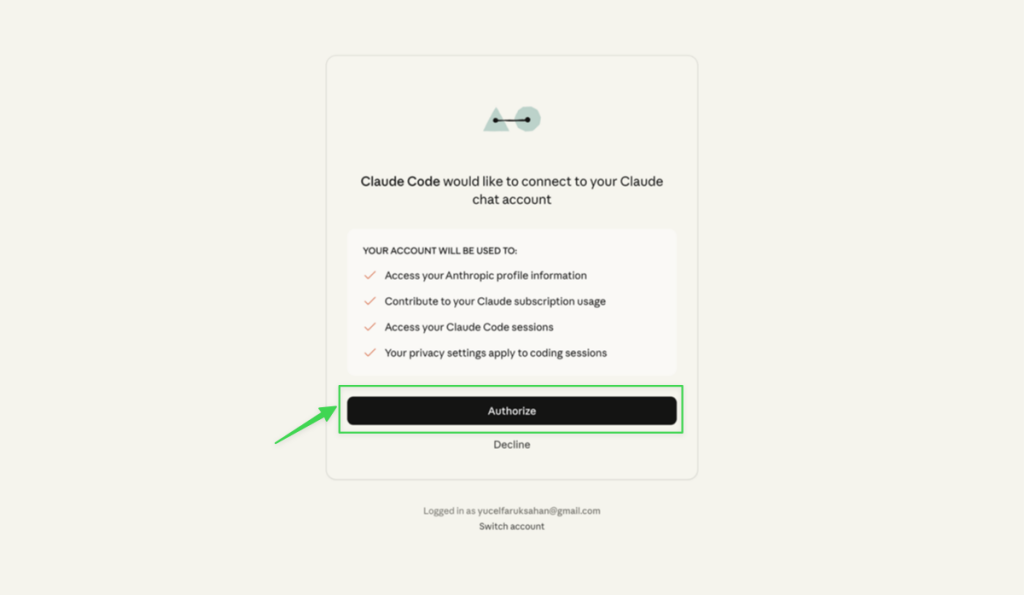
After authorization a new panel will open up. This is your Claude Code interface!
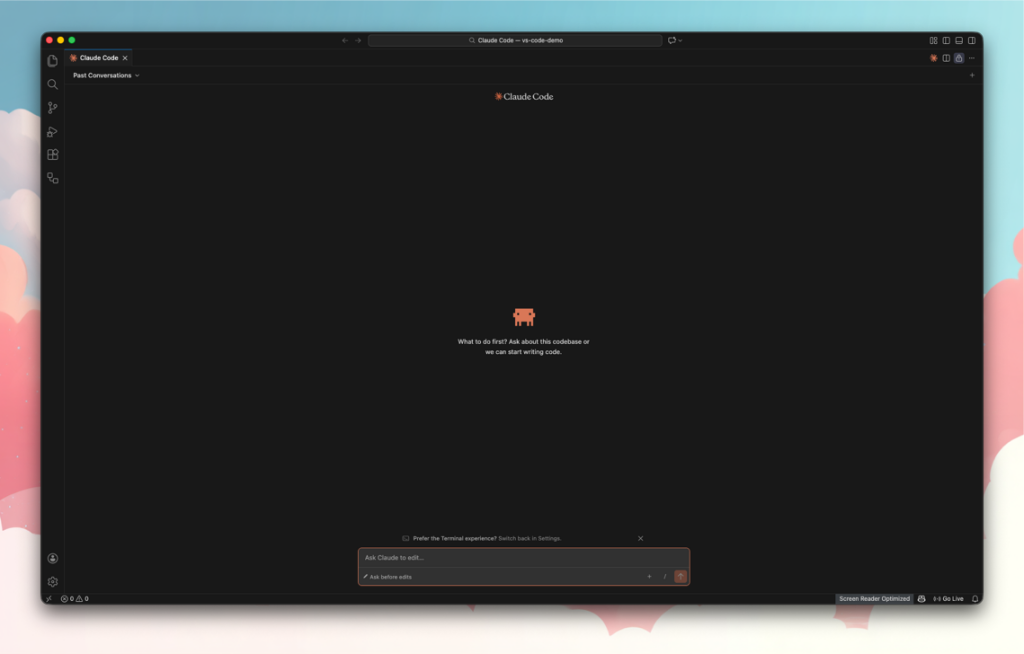 Here's what makes it special:
Two Ways to Work
Plan Mode (Recommended for Beginners) Think of this as "measure twice, cut once" mode. When you ask Claude to do something, it will first show you a plan of what it wants to do. You can review the plan, make changes if needed, and then tell Claude to go ahead. This gives you full control and helps you learn what's happening at each step.
Auto-Accept Mode Once you're comfortable, you can switch to auto-accept mode where Claude automatically applies changes as it makes them. This is faster but means you need to pay closer attention.
Talking to Claude Code
Using Claude Code is as simple as having a conversation. In the text box at the bottom of the Claude Code panel, you can type things like:
"Can you explain what this function does?"
"Help me fix the error on line 25"
"Create a function that sorts a list of names"
"Add comments to explain this code"
Just write naturally, like you're asking a friend for help.
Sharing Files and Images
Want Claude to look at a specific file? Use the @ symbol followed by the file name. For example: @app.py will include that file in your conversation. You can also click the attachment icon to add files or even screenshots.
Smart Features You'll Love
Extended Thinking See that brain icon in the bottom-right? That's the "Extended Thinking" toggle. When turned on, Claude takes extra time to think through complex problems more carefully. It's like asking someone to really think hard about a tough question instead of giving a quick answer.
Conversation History All your conversations are saved, so you can go back and reference previous help sessions. It's like having a notebook of all the advice you've received.
Multiple Projects at Once Working on two different things? You can have multiple Claude Code sessions open at the same time, each helping with a different project.
Important Things to Know
Claude Reads Your Settings
Claude Code uses the same settings file as the command-line version. If you've already set up preferences for Claude Code, the VS Code extension will automatically use those. Don't worry if you haven't—the defaults work great for beginners.
Review Before Accepting
When Claude suggests changes, you'll see them highlighted in your editor. Take a moment to read through them. This isn't just about checking for mistakes—it's also a great way to learn. Over time, you'll start to recognize patterns and understand why Claude makes certain suggestions.
Pro Tip: Make the Panel Wider
Try dragging the Claude Code panel to make it wider. This will show you side-by-side comparisons of your original code and Claude's suggestions, making it much easier to see exactly what's changing.
What Claude Code Can't Do (Yet)
The VS Code extension is constantly improving, but there are a few features that aren't available yet:
Setting up special integrations (called MCP servers) needs to be done through the command line first
Going back in time to earlier points in your conversation (the rewind feature is coming soon)
Quick shortcuts like using
#to add notes or!to run commands
These features exist in the command-line version, and they're being added to the VS Code extension soon.
Staying Safe While Using AI Assistance
Here's something important for beginners: when Claude Code has permission to automatically edit your files, it could technically change settings files that affect how your editor behaves. This is rare, but it's good to be aware of it.
Tips for Safe Usage:
Start with Plan Mode (not auto-accept) until you're comfortable
Read through suggested changes before accepting them
If you're opening code from the internet or someone you don't know, enable VS Code's "Restricted Mode" for extra safety
Don't feel pressured to use auto-accept mode—many experienced developers prefer reviewing changes manually
Troubleshooting: When Things Don't Work
Claude Code Won't Install
Double-check that your VS Code version is 1.98.0 or newer
Make sure VS Code has permission to install extensions (sometimes antivirus software blocks this)
Try downloading it directly from the Visual Studio Code Marketplace website
Claude Isn't Responding to My Questions
Check your internet connection
Try starting a new conversation (it's like turning it off and on again)
Click the three dots menu and select "Report Issue" to get help from the Anthropic team
The Spark Icon Isn't Showing Up
Try closing and reopening VS Code
Check that the extension is enabled in your Extensions panel
Make sure no other extensions are conflicting
Tips for Getting the Most Out of Claude Code
Be specific in your questions: Instead of "fix this," try "this function is returning the wrong value, can you help me debug it?"
Use it as a learning tool: After Claude suggests a change, ask "Why did you make this change?" to understand the reasoning
Start small: Don't try to have Claude rewrite your entire project. Start with small tasks like adding comments, fixing individual functions, or explaining confusing code
Experiment safely: Create a practice project where you can experiment with Claude Code without worrying about breaking important code
Remember it's an assistant, not magic: Claude Code is incredibly helpful, but it's not perfect. Always review its suggestions and use your judgment
The Bottom Line
Claude Code in Visual Studio Code is like having a knowledgeable friend who's always ready to help with your coding projects. It won't judge you for asking "basic" questions, it's always patient, and it's there whenever you need it.

Yucel is a digital product creator and content writer with a knack for full-stack development. He loves blending technical know-how with engaging storytelling to build practical, user-friendly solutions. When he's not coding or writing, you'll likely find him exploring new tech trends or getting inspired by nature.